How-to

Workspace

Choose a light, dark or system interface and turn each type of notification on or off.

The Workspace section in Settings manages how LayerProof looks and which notifications you receive.
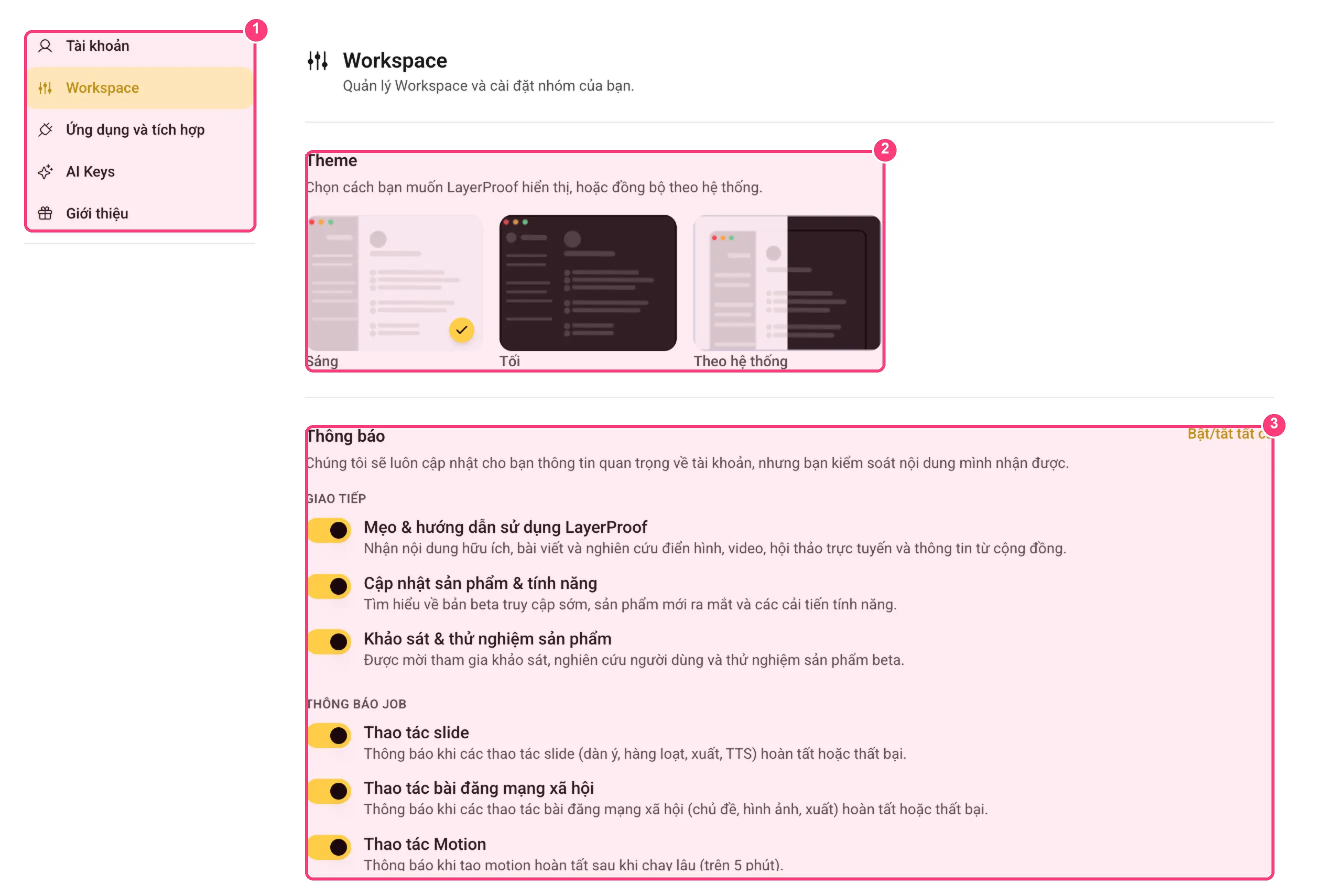
The Settings sections
  1. Five Settings sections: Account, Workspace, Apps and integrations, AI Keys, Referrals.
  2. Theme (interface): choose Light, Dark or System. Click a preview image; the yellow check mark shows the current choice.
  3. Notifications: flip the switch to turn each type on or off. The Toggle all button at the right changes them in bulk.
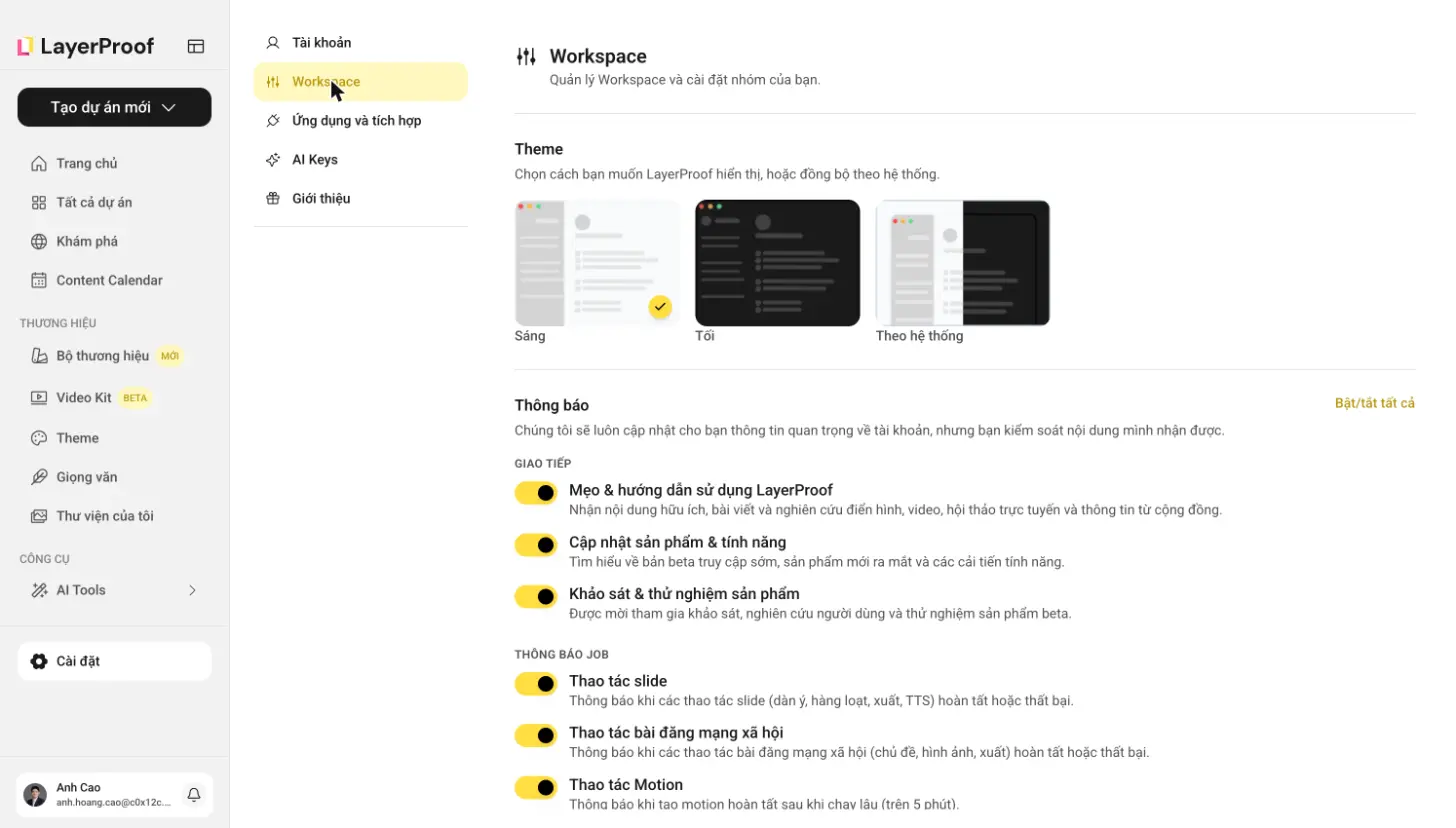
1

Notification groups

  • Communication: tips and guides for using LayerProof, product and feature updates, surveys and product experiments.
  • Job notifications: tell you when a task finishes or fails, including slide actions, social post actions and Motion actions (notifies when motion generation runs longer than 5 minutes).

Video generation takes a few minutes, so turning on the job notification group saves you from watching the tab.

Interface and notifications

Related guides

Ready to put your ideas into action?

Turn what you've learned into social posts and videos with LayerProof.

Try LayerProof