This guide walks through each area of LayerProof, from the left sidebar to sub-pages such as Content Calendar, My Library and Explore. In each screenshot, the pink numbers mark the exact area mentioned in the list below it.
How to navigate LayerProof
A tour of every area of LayerProof: the left sidebar, the new project menu, Content Calendar, Library, All projects, Explore and Settings.
1
Home and the left sidebar
After you sign in, you land on Home. The left sidebar is present on almost every page, so it's the first place to get familiar with.
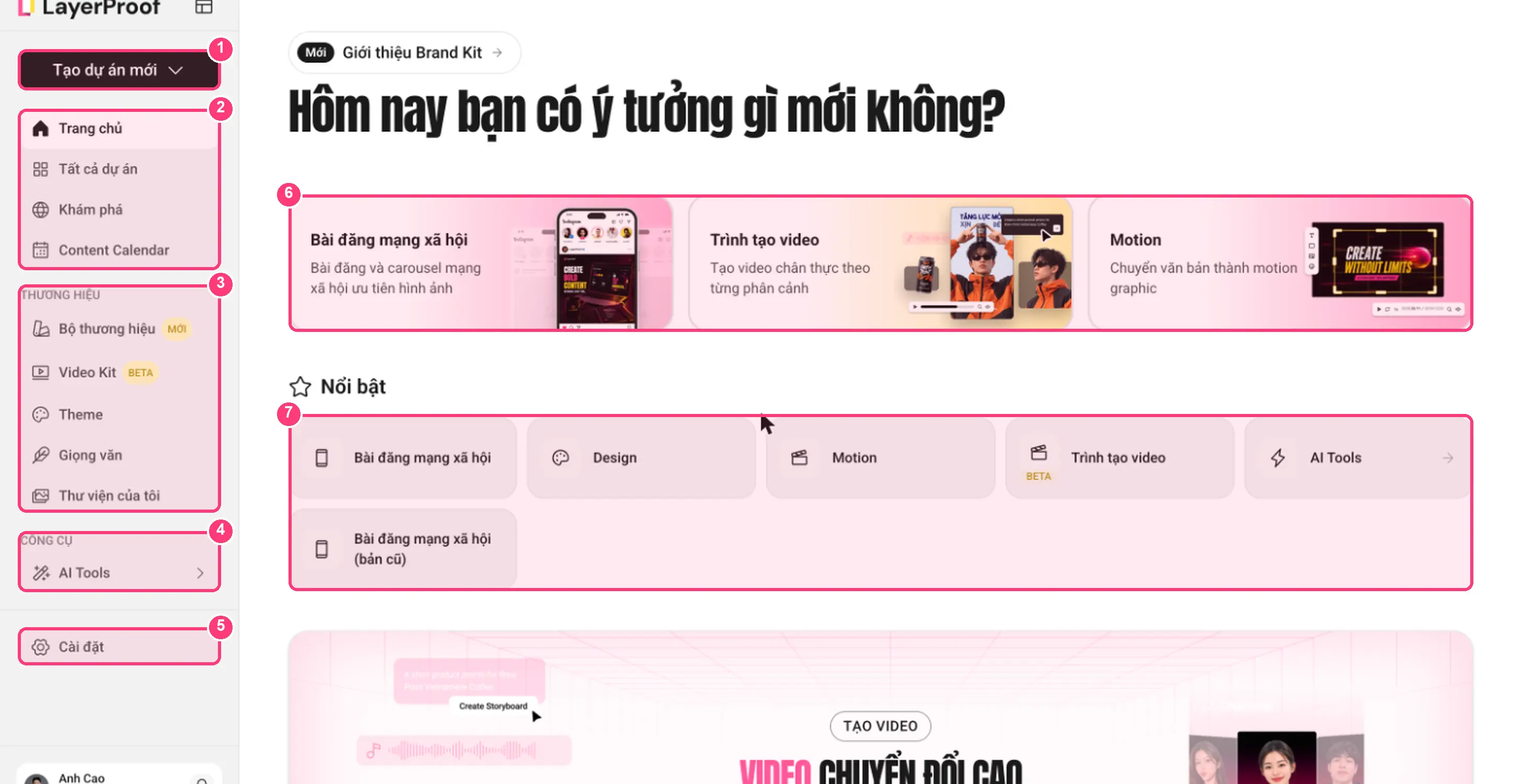
- New project: the black button at the top, which opens a menu of project types.
- First group: Home, All projects, Explore and Content Calendar.
- Brand group: Brand Kit (NEW), Video Kit (BETA), Themes, Tone and My Library.
- Tools group: AI Tools. Click the arrow to open the sub-tools (Remove background, Extract elements, edit text in images).
- Settings: account, Workspace, apps, AI Keys and referrals.
- Three quick-create cards: Social posts, Video generator and Motion.
- Featured section: shortcuts to frequently used tools. The Social posts (legacy) button is the previous version of the post tool; these guides use the new version.
At the bottom left is your account card and the Notifications bell. The collapse button next to the logo at the top gives you more room to work.
💡 The first time you open it, Home can be blank for a few seconds before everything shows. Just wait a moment, no need to reload.
2
The New project menu
Click New project to choose a project type. Hover over each item and a short description card appears on the right.
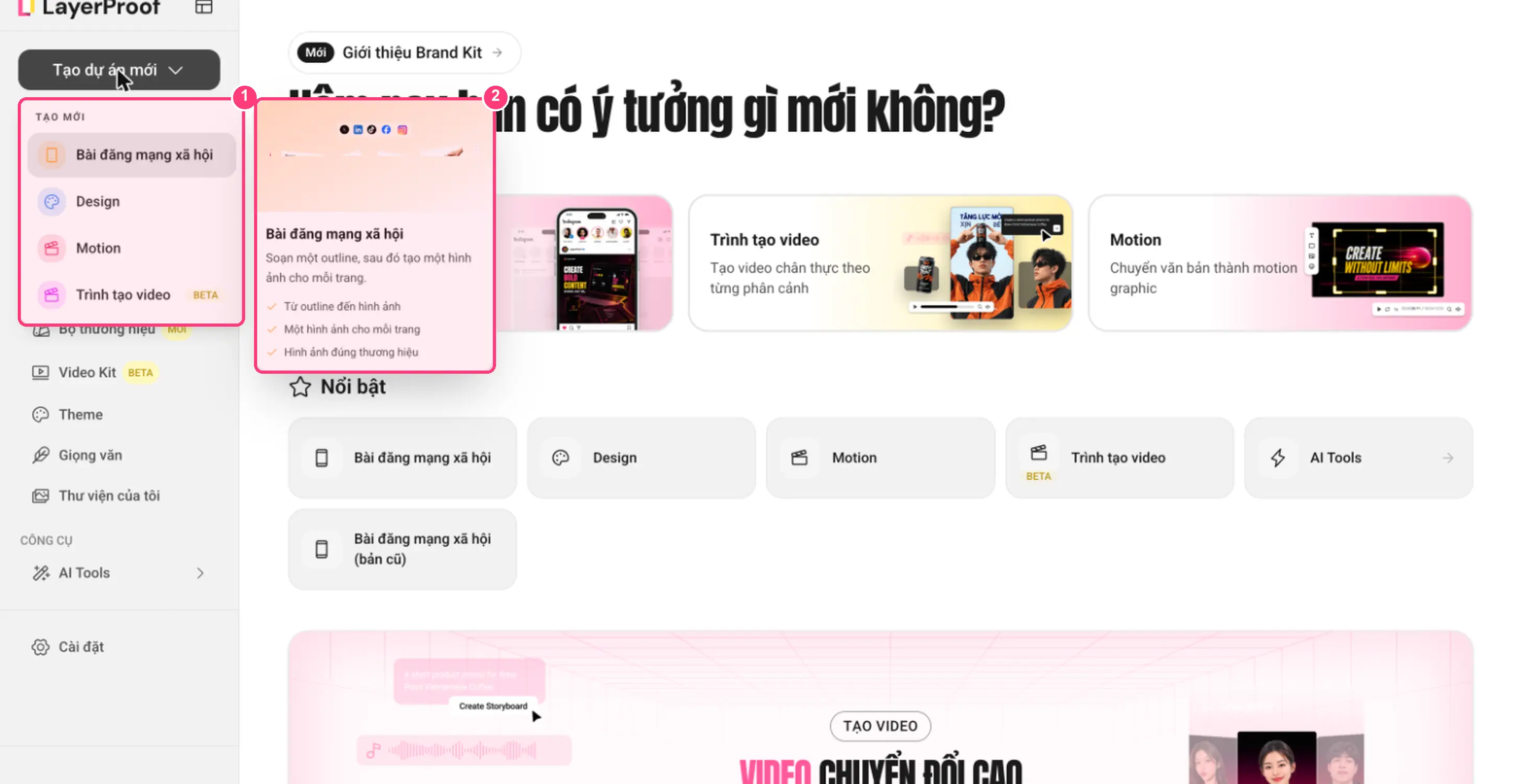
- Four project types: Social posts, Design, Motion and Video generator (BETA).
- Description card on hover. For example, the Social posts card explains that this tool drafts an outline first, then generates one image per page.
3
Content Calendar
This is your posting schedule across every platform. Detailed instructions are in Manage posts with Content Calendar.
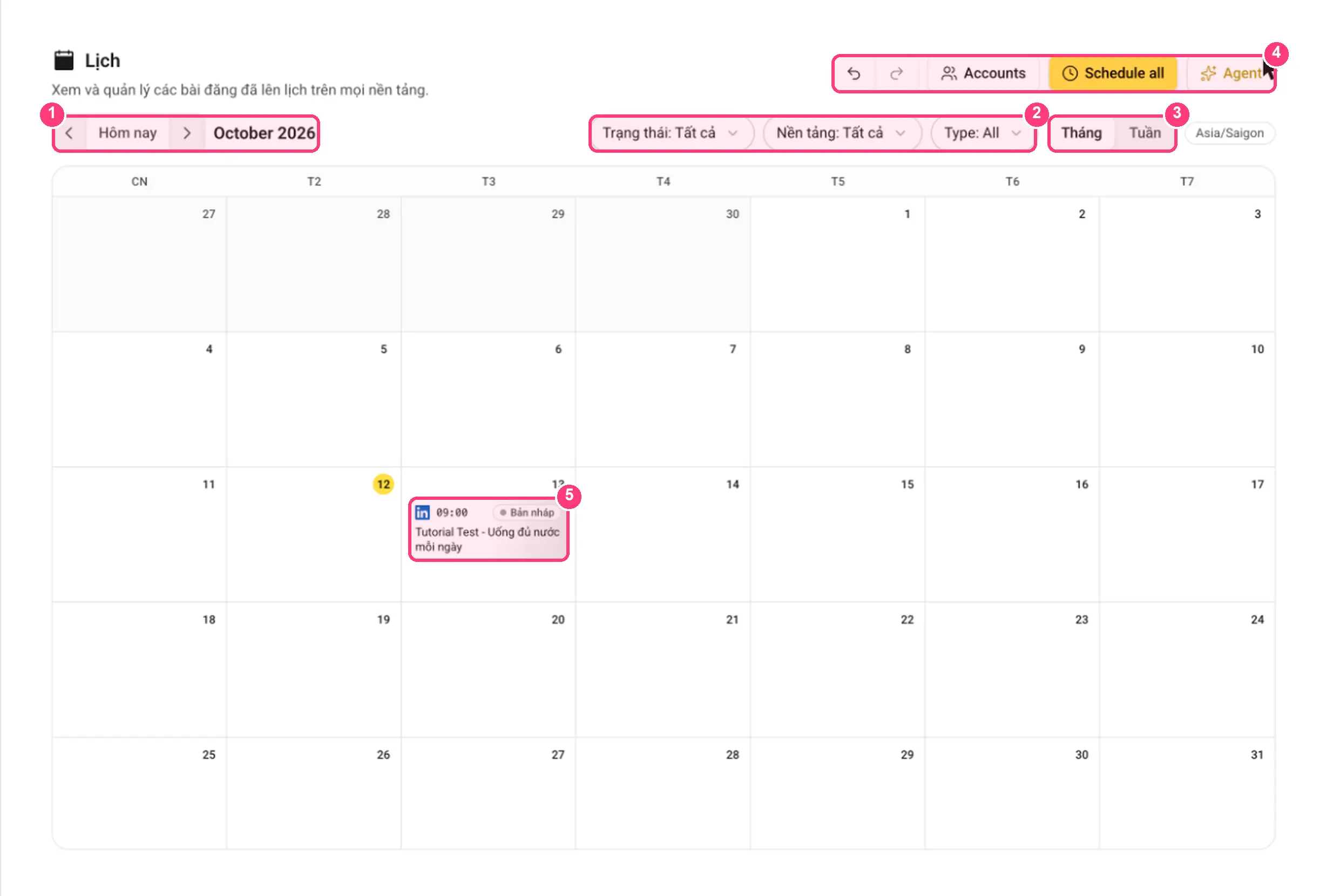
- Date navigation: the arrows and the Today button to move between months.
- Filters: filter by Status, Platform and Type (Video or Carousel).
- View Month or Week, with the time zone in use.
- Toolbar: undo, redo, Accounts, Schedule all and Agent.
- Posts on the calendar: each post is a small card. Click it to open and edit.
4
My Library
Where your files are stored, organized into folders and reused in every project.
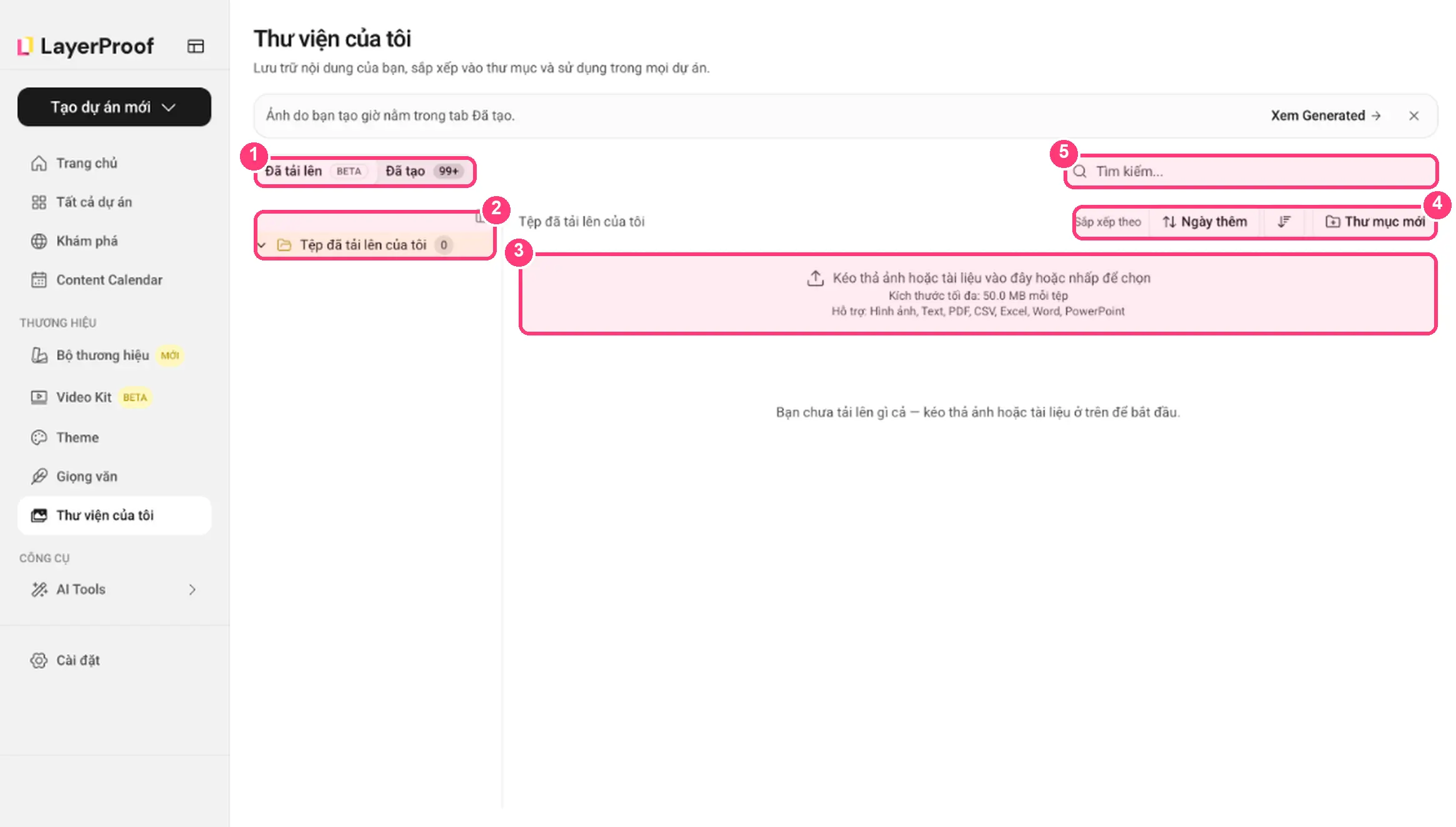
- Two tabs: Uploaded (BETA) for files you upload, and Generated for images LayerProof created.
- Folder tree: there is a default My uploaded files folder.
- Drop zone: drop images or documents here, or click to choose files. Up to 50 MB per file; images, text, PDF, CSV, Excel, Word and PowerPoint are supported.
- Sort by and New folder.
- Search box.
Images you save with Save to library when downloading a post are in Export library on the top bar of the post page, and may not appear here.
5
All projects
Every post, design or video you create is a project. This page collects them so you can reopen and manage them.
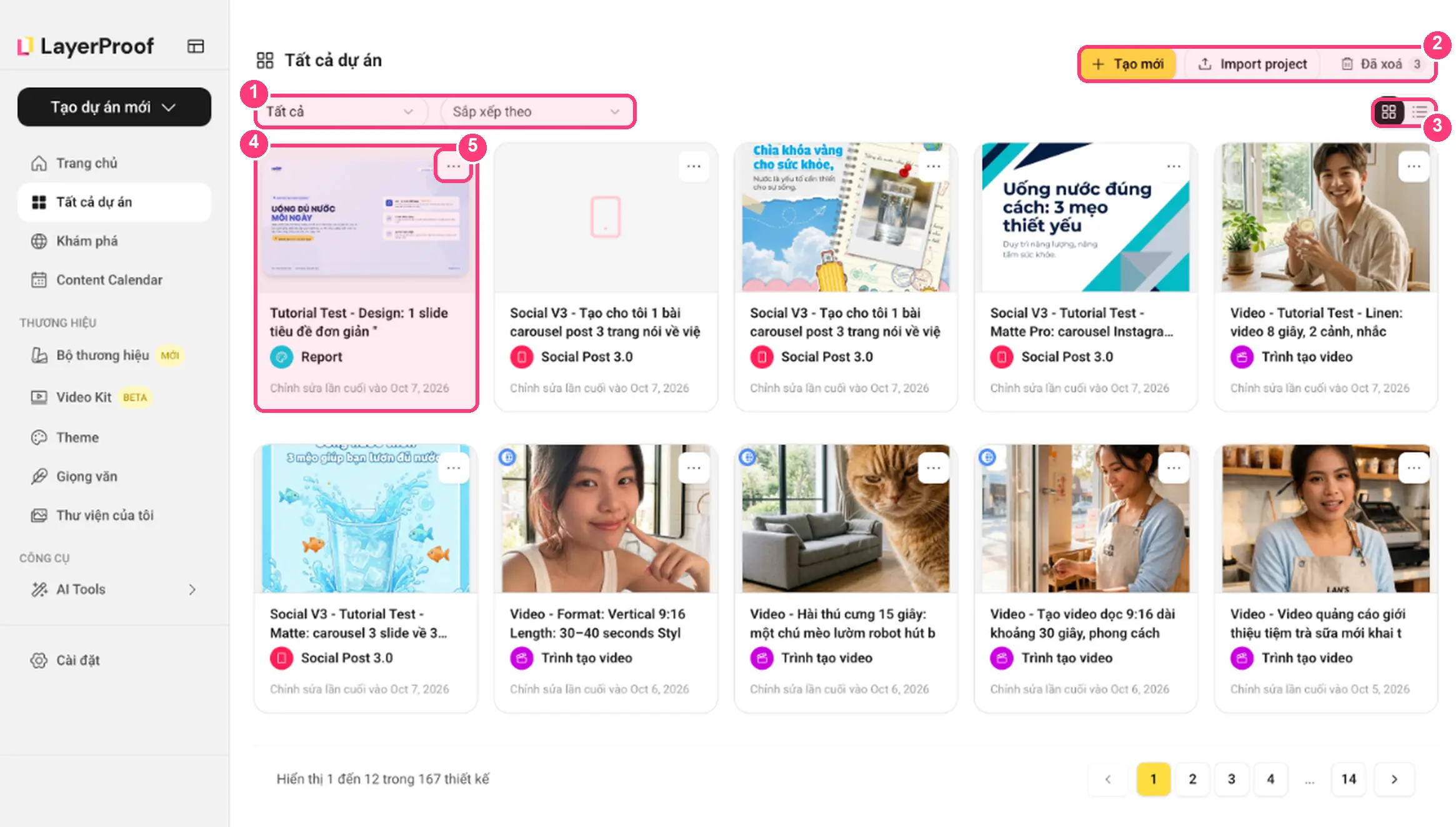
- Type filter and Sort by. Filter groups are Social posts, Motion, Video generator, Design and AI Tools. Sort by name or last modified.
- Create new, Import project and Deleted (trash, with the number of deleted projects).
- Switch view between grid and list.
- Project card: thumbnail, name, type and last modified date. Click a card to open the project.
- Three-dot menu on a card: Rename, Settings, Duplicate project, Export project..., Make public and Move to trash.
6
Explore
Explore is a library of public community projects, useful when you need ideas.
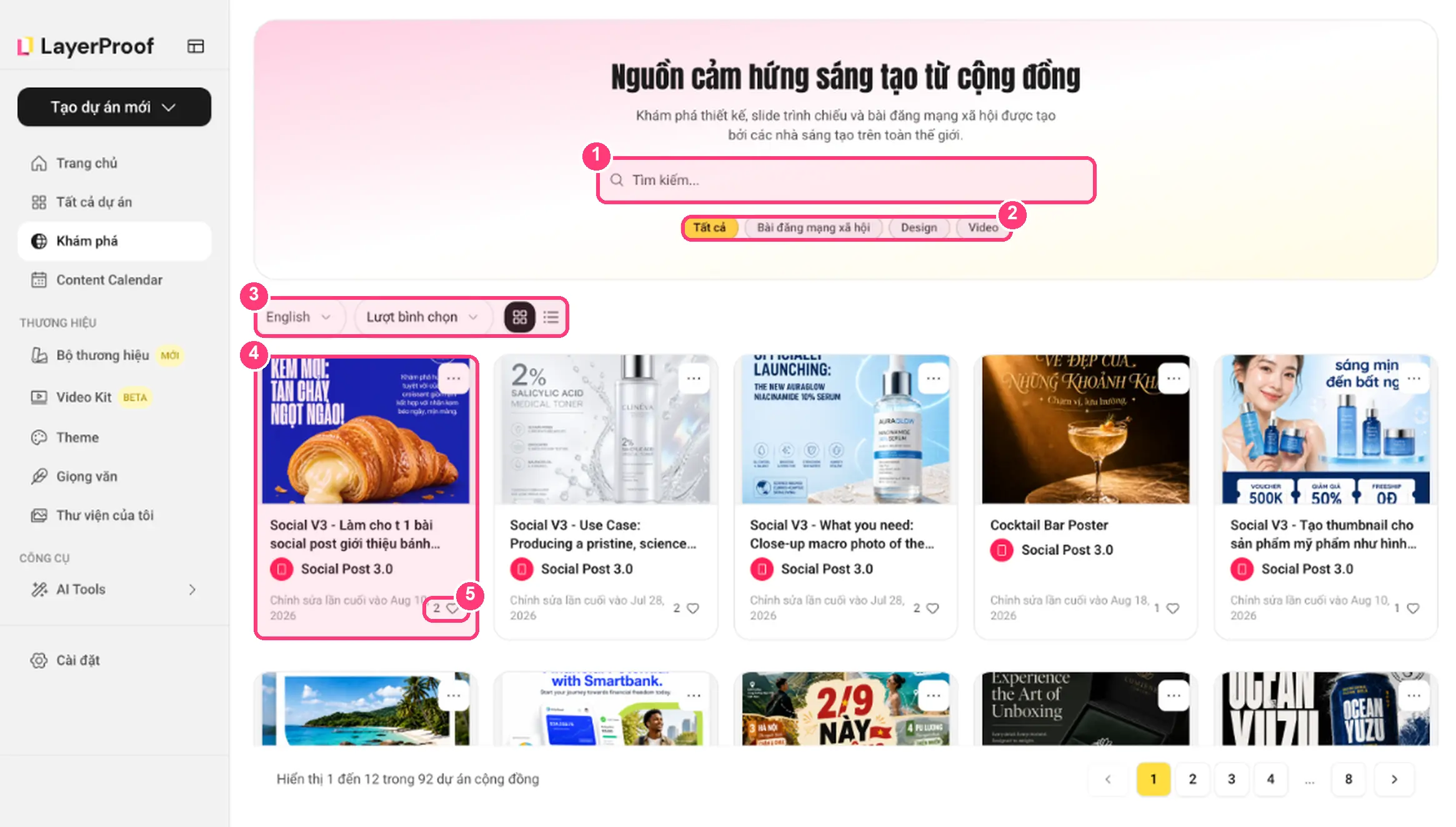
- Search box by keyword.
- Quick filters: All, Social posts, Design, Video.
- Language, sort order (for example Votes) and grid or list view.
- Community project cards with thumbnail, name, type and last modified date.
- Heart icon to like a project.
7
Settings
Click Settings in the sidebar to manage your account. Each section is explained under Workspace and settings.
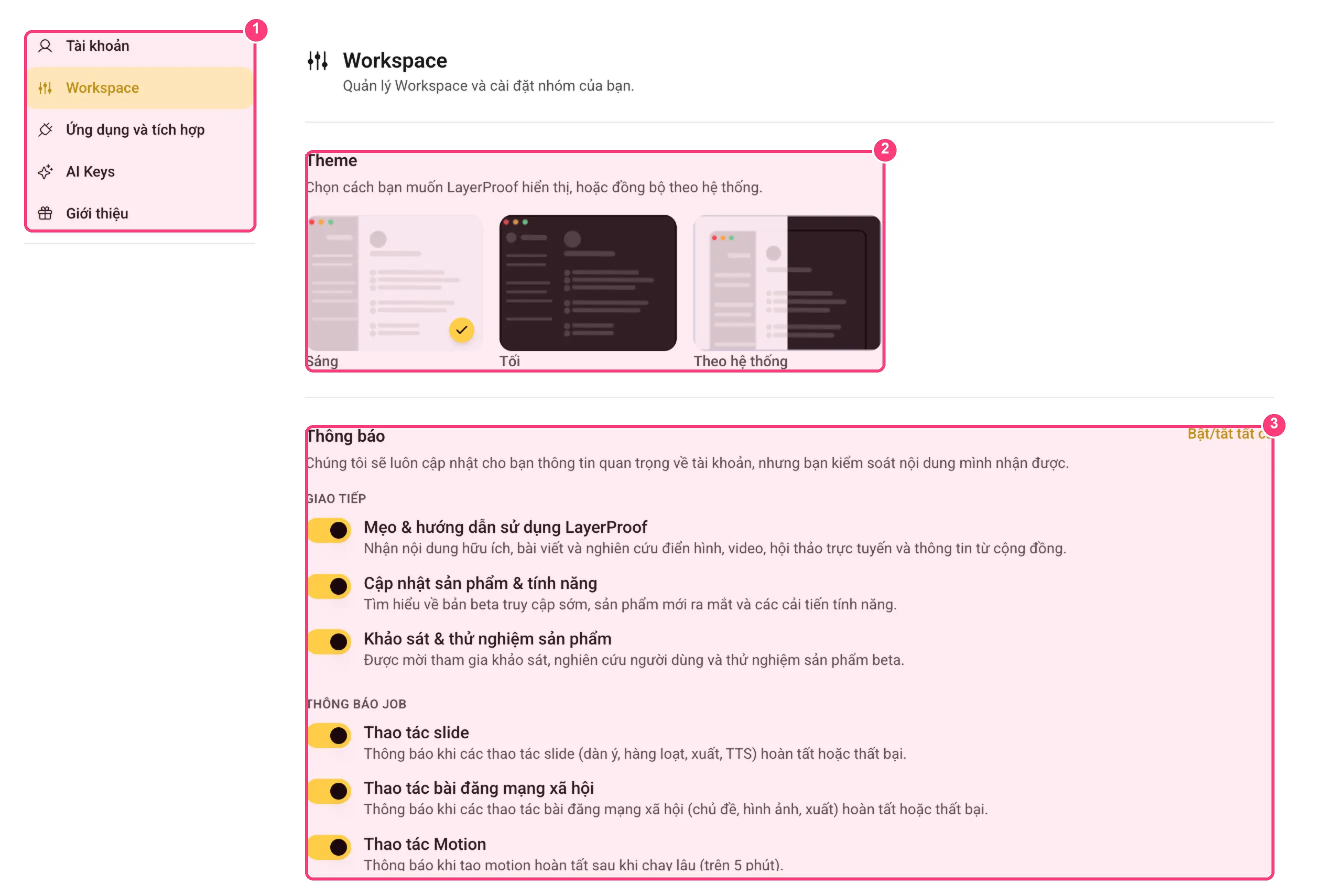
- Five sub-sections: Account, Workspace, Apps and integrations, AI Keys and Referrals.
- Interface theme: choose Light, Dark or System.
- Notifications: turn each type on or off.
Click your account card at the bottom left for a quick menu: Manage account, Feedback, Appearance, Language and Sign out.
8
Having trouble?
Email hello@layerproof.app for the fastest support!
Related guides
How-to
What is LayerProof?
An overview of LayerProof, the AI tool that turns a short idea into social posts, designs, videos and motion graphics.
5 stepsReadHow-toConnect your social media accounts
Link LinkedIn, Facebook, Instagram, TikTok, Threads and X to publish or schedule posts directly from LayerProof.
4 stepsReadHow-toManage posts with Content Calendar
Add posts to the calendar, change posting dates, filter by platform, or let the Agent propose a whole content plan.
6 stepsReadReady to put your ideas into action?
Turn what you've learned into social posts and videos with LayerProof.
Try LayerProof