This page is available in English. Choose your preferred language to continue.
Trang này có bản tiếng Việt. Chọn ngôn ngữ bạn muốn để tiếp tục.
How-to
Upgrade your plan and billing
See your current plan and credits, change or upgrade a plan, buy more credits, enter a promo code and view payment history.
Each time LayerProof generates an image, a video or runs an AI tool, your account spends some credits. Your plan decides how many credits you get each month. This guide shows how to see your plan and credit usage, change or upgrade your plan, buy more credits, enter a promo code and view payment history.
ℹ️ US dollar prices come from the public pricing page layerproof.app/plans (viewed 12 Oct 2026). Prices in local currency inside the app are approximate conversions (marked ≈) and may differ by time or region. Open the live screen to see the latest numbers.
1
See your plan and credits
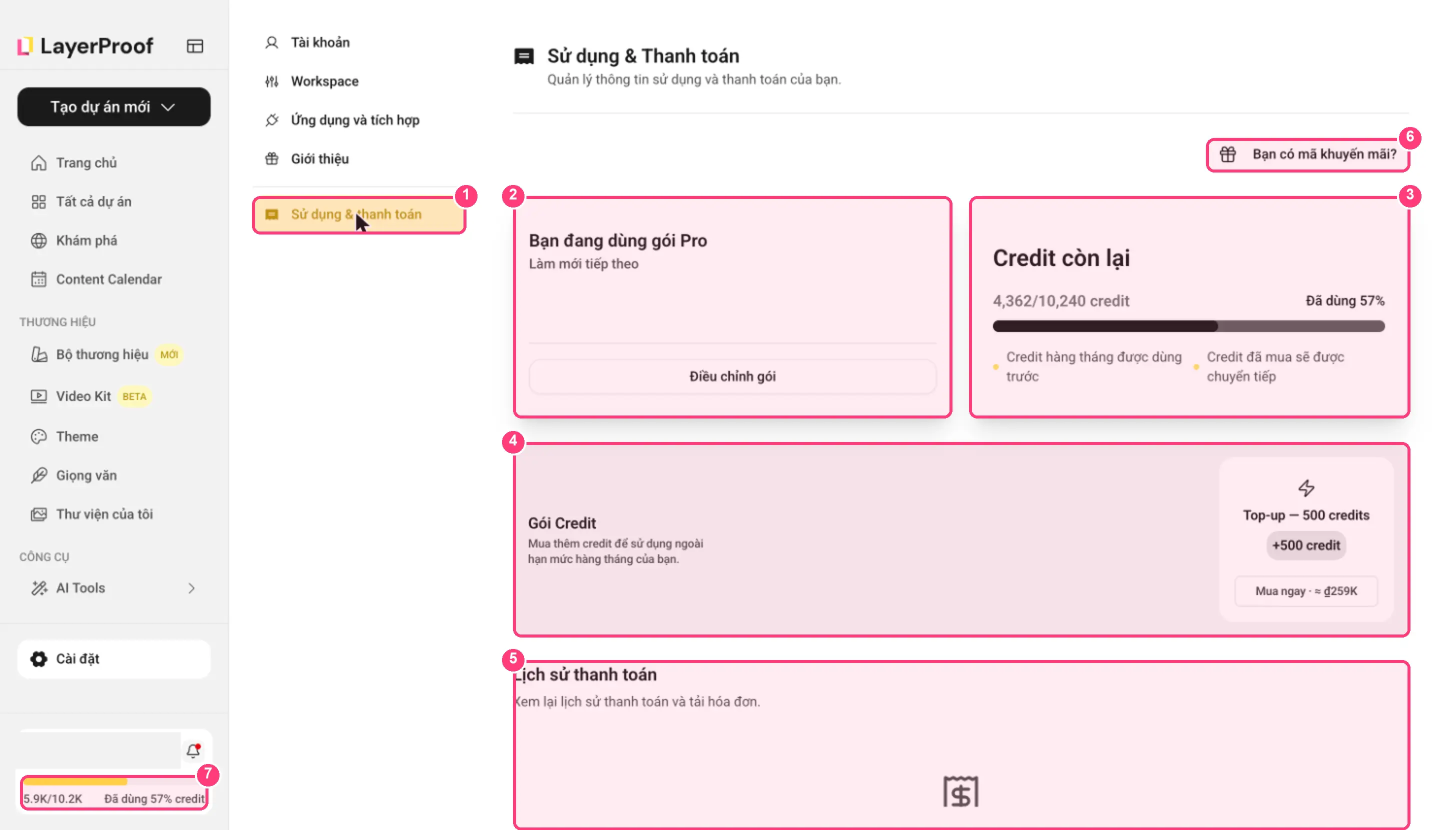
Go to Settings and choose Usage & billing. The sidebar also always shows a small credit bar at the bottom, showing how much you've used.
The Usage and billing page
Usage & billing section in Settings.
Current plan card: shows which plan you're on, with the Next refresh line and the Adjust plan button.
Remaining credits: remaining credits out of the total, a progress bar and percent used. The app states that monthly credits are used first, and purchased credits carry over to the next month.
Credit packs: buy more credits when you run out of the monthly allowance.
Payment history: where to view payments and download invoices.
Have a promo code?: the button to enter a code.
Sidebar credit bar: always shows used and total, for example 5.9K/10.2K, 57% used.
2
Choose or change a plan
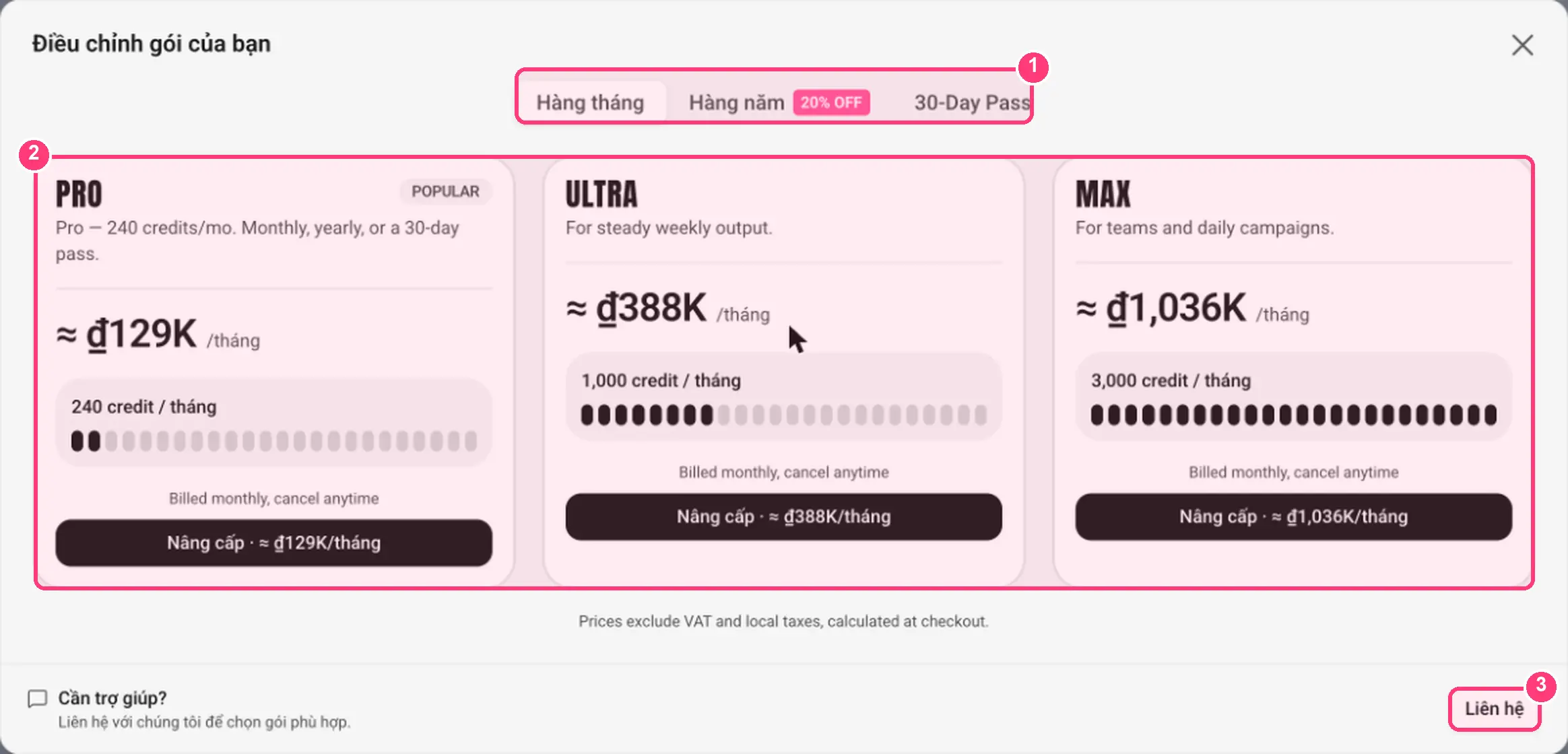
Click Adjust plan on the current plan card. The Adjust your plan box opens with three plans: Pro, Ultra and Max.
Choose a plan
Three billing tabs: Monthly, Yearly (with a 20% OFF label) and 30-Day Pass.
Three plans: each card shows the price, monthly credits and an Upgrade button with the price.
Contact: if you need advice choosing a plan, click this button at the bottom right.
Prices are shown in local currency, exclude VAT and local taxes, which are calculated at checkout. All monthly and yearly plans say "cancel anytime".
Plan
Monthly price (pricing page)
Monthly in app
Yearly in app (per month)
Credits per month
Pro
$5
≈ ₫129K
≈ ₫104K
240
Ultra
$15
≈ ₫388K
≈ ₫311K
1,000
Max
$40
≈ ₫1,036K
≈ ₫829K
3,000
All three plans can use every model and feature, with PPTX, PDF and 4K export, social posting, Content Calendar and no watermark. According to the pricing page, Pro (240 credits) is enough for individual clips and small edits, but not for a whole video. For regular video making, look at Ultra or Max.
Yearly billing
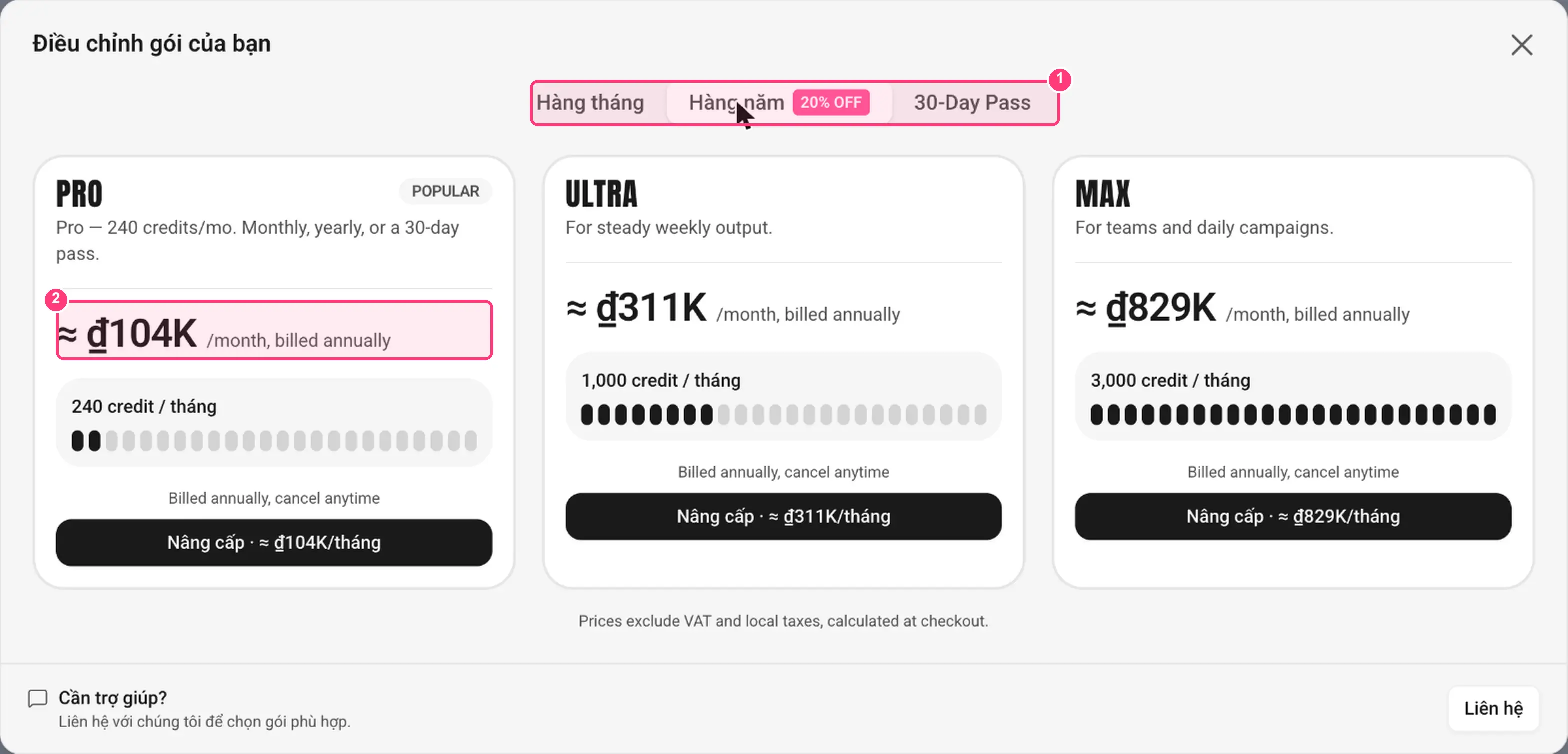
Switch to the Yearly tab to see the monthly price about 20% lower. The price is marked "billed annually", meaning you pay once for the whole year.
Yearly billing
30-Day Pass
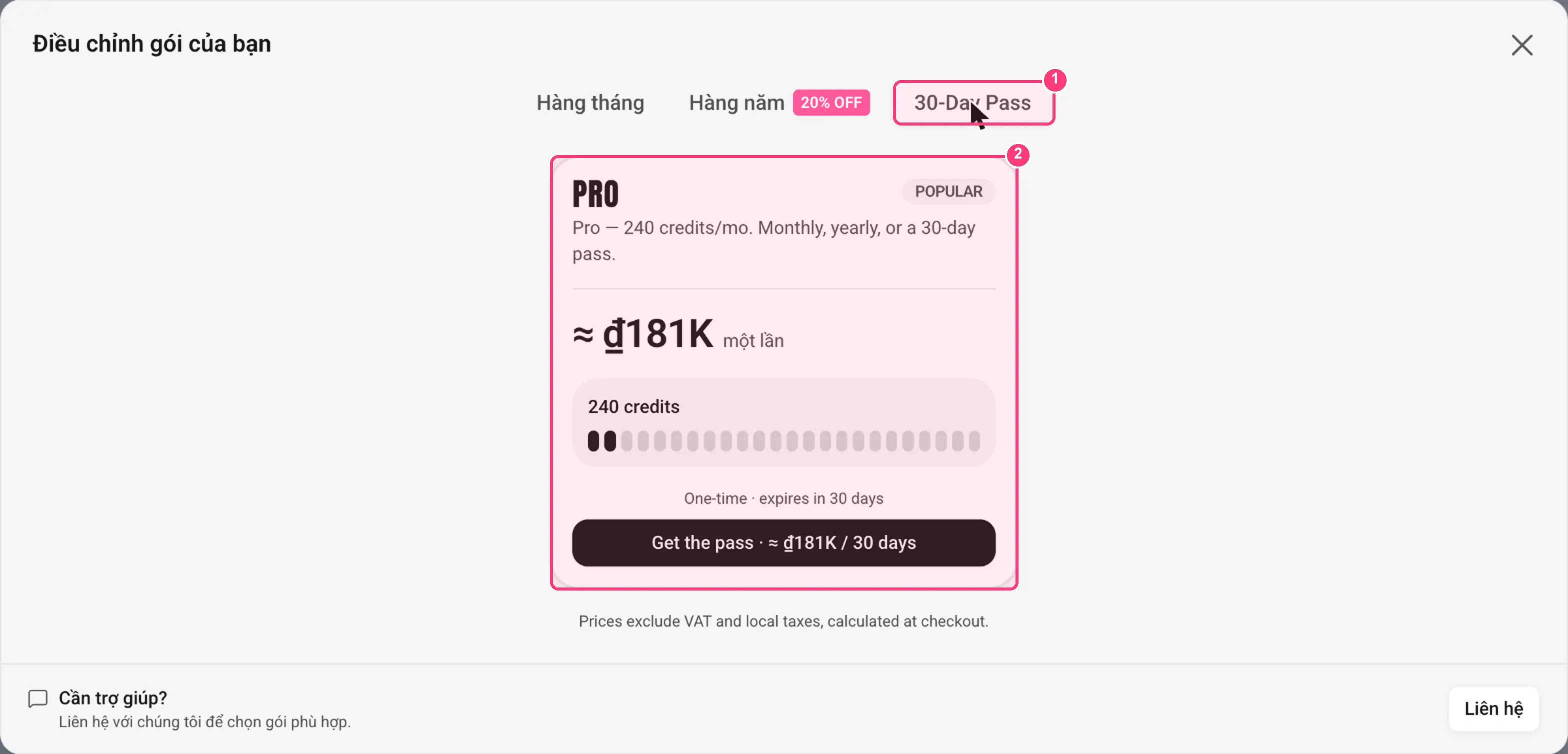
The 30-Day Pass tab only has the Pro plan: pay once, get 240 credits that expire after 30 days. This suits you if you only want to try it for a month without auto-renewal.
30-Day Pass
3
Available payment methods
Currently LayerProof only accepts payment by Visa / Mastercard through the Stripe payment gateway. Other payment methods will be available in the near future.
4
Buy more credits
On the Credit packs card, the Top-up pack adds 500 credits for about ₫259K (the pricing page lists $10 for 500 credits). Click Buy now to purchase. Top-up credits don't expire, carry over to the next month and are used after your plan's credits.
5
Enter a promo code
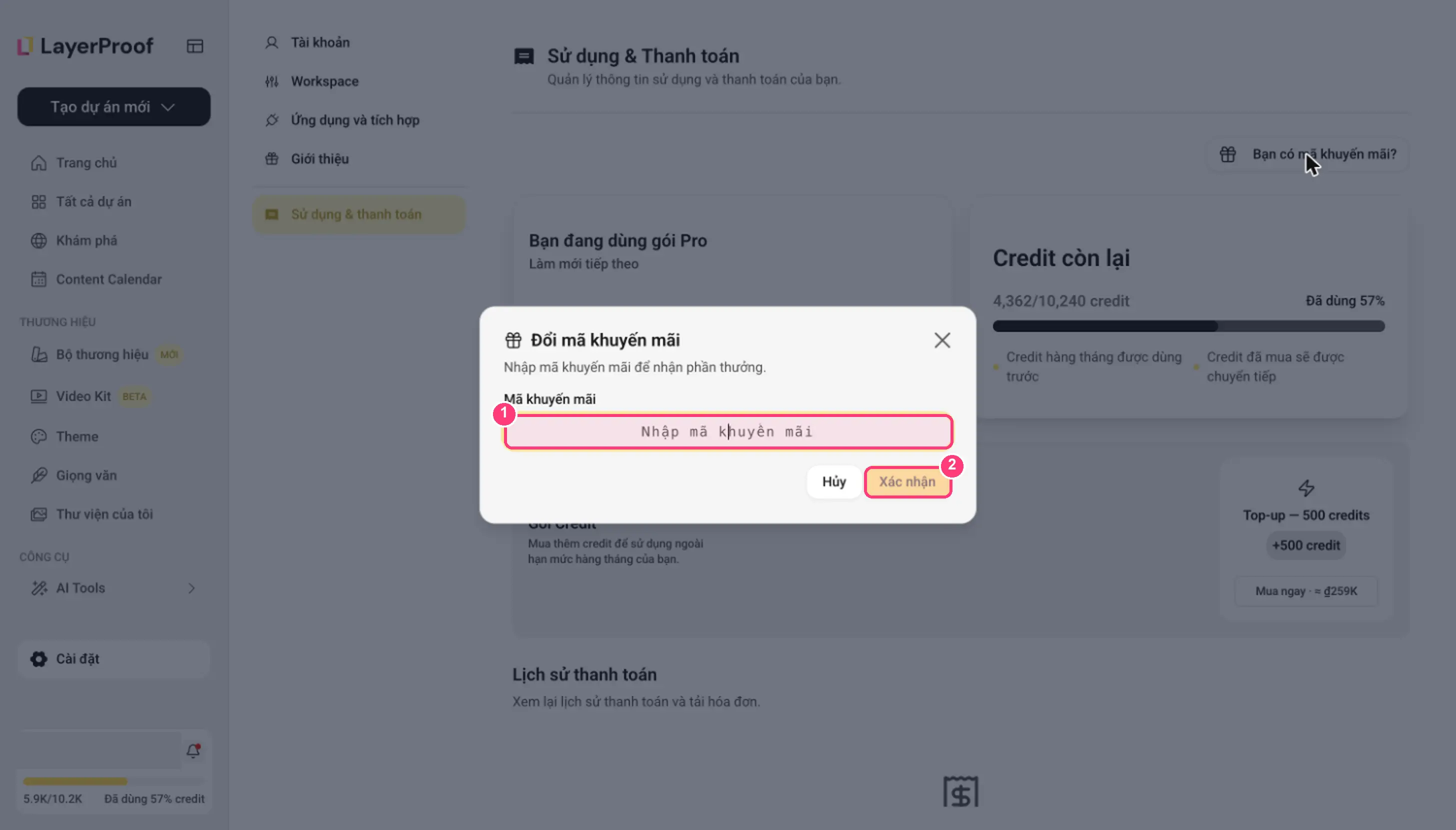
Click Have a promo code? at the top right. The Redeem promo code box appears: type the code in the field and click Confirm to receive the reward.
Enter a promo code
Promo code field.
Confirm: lights up once you've entered a code. To exit, click Cancel.
6
Payment history and invoices
The bottom of the page says "Review your payment history and download invoices". When you haven't bought anything, this section shows "No payment history yet", and history appears here after you make a purchase.
7
Typical credit costs
Task
Credits
Create a single-image post
about 10
One image with Gemini 3 Pro Image
27
One image with Gemini 3.1 Flash Image
10
Mark to Edit
10
Apply Image properties changes
8
Create a Theme
8
Remove background / Extract text
5 (plus 5 per download)
Extract elements
10 (plus 5 per download)
Export PowerPoint
5
Export video
20
One 4-second video clip (Seedance 2.5, 480p)
79
Assistant message
2 to 5 per step
Editing an image regenerates it with the same model, so it costs the same as a new image.
8
How to save credits
Review the brief and outline carefully before generating images.
Make drafts with a cheaper model and only switch to a more expensive one when you need very accurate Vietnamese text.
Use ready-made video templates instead of building from scratch.
Read the credit estimate line before generating video.
Refer friends: according to the Referrals section in Settings, each friend who verifies their email earns you 200 credits.
9
How credits expire
According to the pricing page, monthly plan credits expire when the new month starts. Top-up credits don't expire and are used after your plan's credits. The 30-Day Pass expires after 30 days.